
HELP · ZOTERO
Move your Zotero library into Docr’d.
Docr’d reads your Zotero library straight from its data folder and copies what you choose: references, PDFs, EPUBs and web snapshots, every mark you made on a PDF in Zotero’s reader, notes, tags, related items and collections. Zotero itself is never changed, so you can keep using both, and import again later to bring over what is new.
Before you start
Quit Zotero. Zotero keeps its database open while it runs, and Docr’d reads that database directly. If Zotero is open, Docr’d says so and you can try again after closing it.
Find your Zotero data folder. Docr’d looks in the default place first, which is a folder named Zotero in your home folder on every system:
| macOS | /Users/you/Zotero |
|---|---|
| Windows | C:\Users\you\Zotero |
| Linux | /home/you/Zotero |
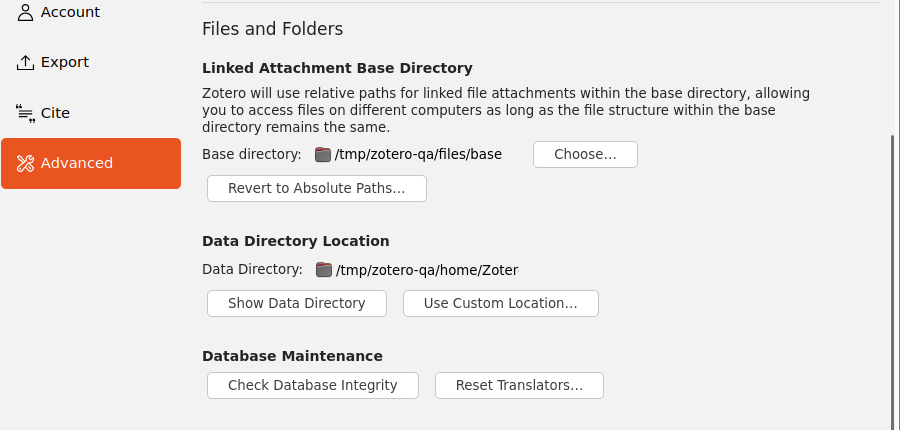
If you moved it, Zotero shows the current location under Settings → Advanced → Files and Folders → Data Directory Location. The folder holds zotero.sqlite and a storage folder with your attachments.
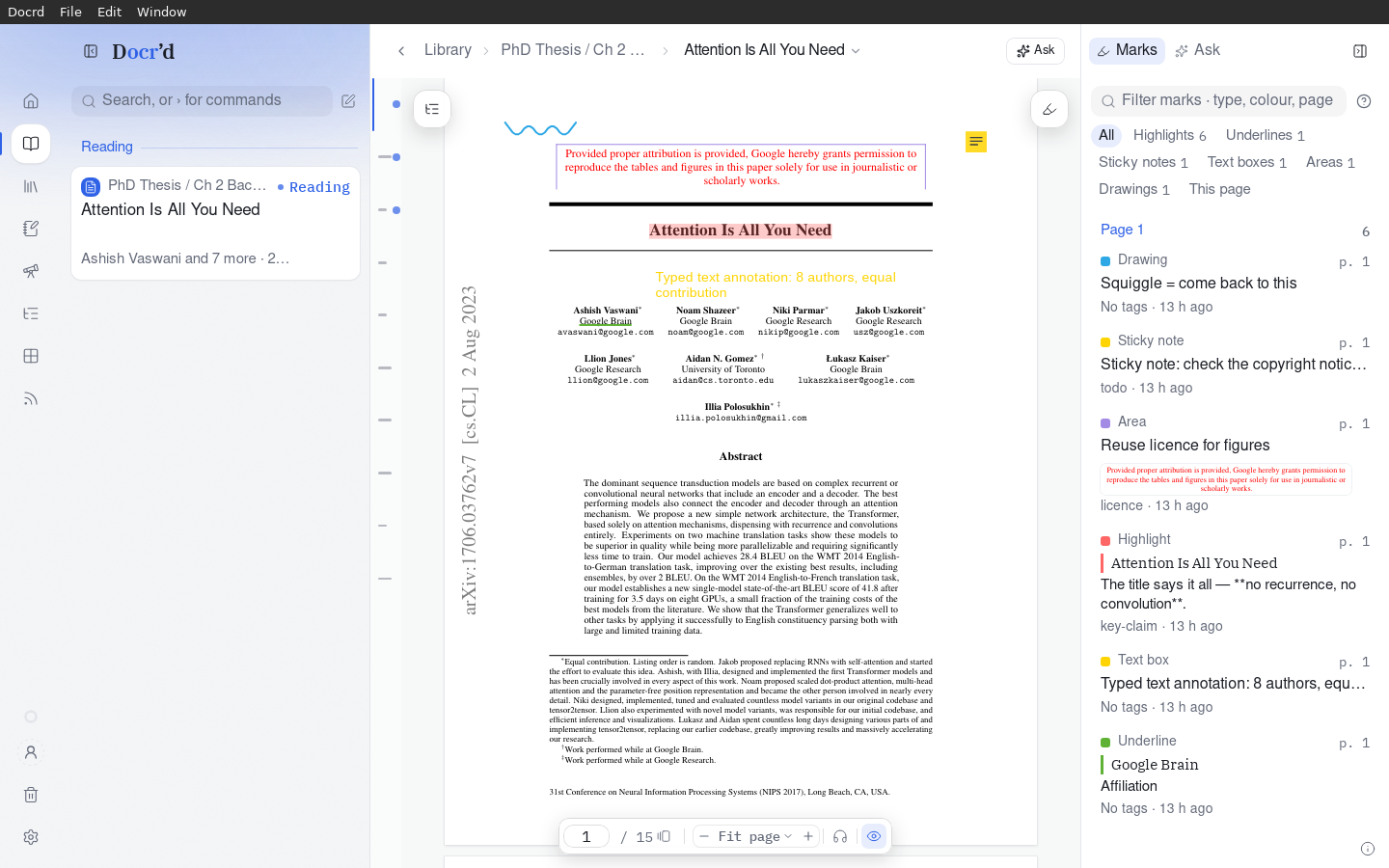
What comes across. Items of every Zotero type with their creators, dates, identifiers and publication details; PDF, EPUB, image and web snapshot attachments stored by Zotero; the highlights, underlines, notes, text, area and ink marks you made on PDFs in Zotero’s reader, keeping their positions, colours, comments and tags; standalone and child notes, including tables, images, maths and citations; tags; related items; and collections, including nested ones, which become binders.
What does not, yet. Marks made on EPUBs and snapshots in Zotero’s reader stay in Zotero; the books and pages themselves come across and can be marked up in Docr’d. Saved searches, feeds, tag colours and the trash are not imported. Items in the trash, and collections in the trash, are left out.
Import on desktop
- In the Library, open Add documents and choose Import references….
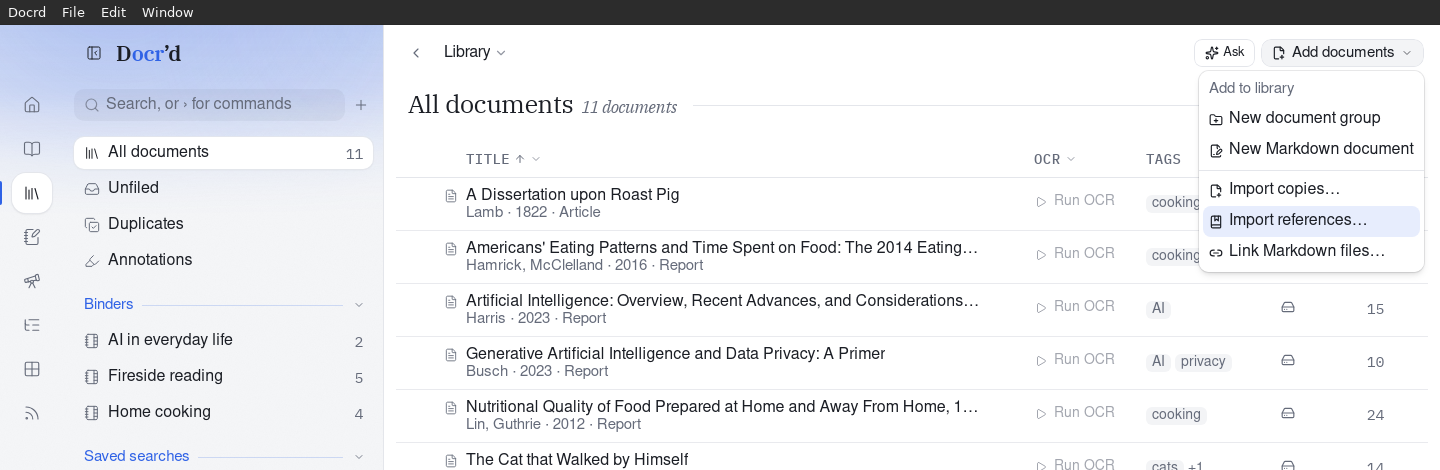
- Docr’d finds your Zotero data folder on its own and lists your libraries and collections. If it was not found, type or choose the folder and click Find library.
- Tick what to import: an Entire library, its Unfiled items, or individual collections. Counts include subcollections, and a collection inside something you already ticked is included with it.
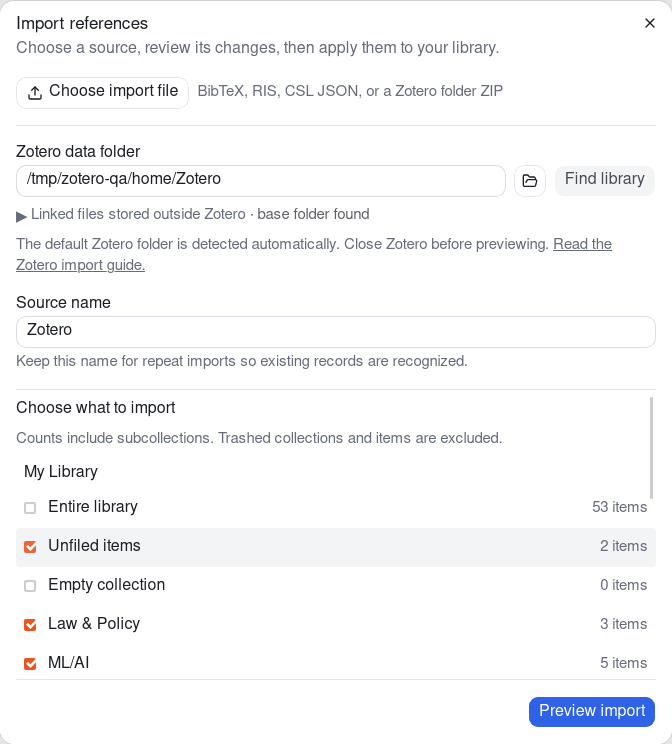
Choose a whole library, unfiled items, or any set of collections. - Keep the Source name as Zotero. Docr’d uses it to recognise the same items when you import again.
- Click Preview import. The preview counts what is ready, what is already in your library and what will be skipped, and lists every record with its attachments, marks, notes, binders and tags. Problems shows only the records that need a look, and Show import details adds the rest of the notices.
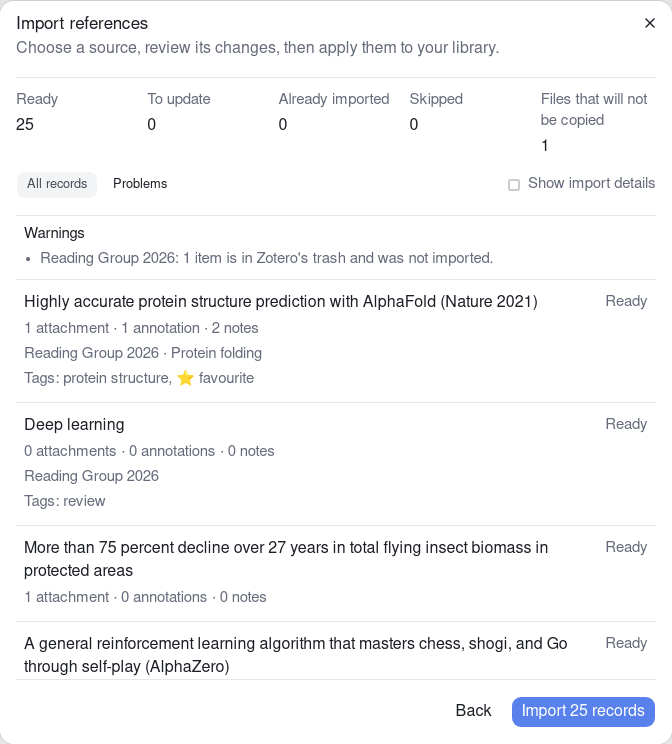
Nothing changes until you click Import. - Click Import. The import runs in the background, so you can close the window and come back; it finishes with Your Zotero library is unchanged.
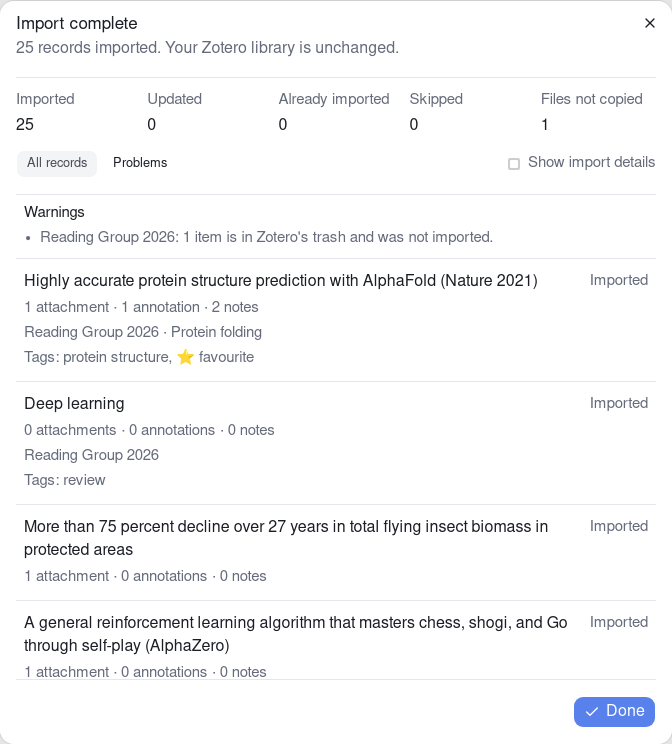
A record the preview marks Needs review is skipped, never merged, and the notice says why: usually an item in your library already has its DOI, ISBN or citation key. Fix the item in Zotero or Docr’d and preview again.
Linked files
Most attachments live inside Zotero’s storage folder and need nothing more. If you link files instead, with ZotFile, ZotMoov or Add Link to File, open Linked files stored outside Zotero in the dialog before you click Find library:
- Zotero’s linked attachment base folder is the folder set under Settings → Advanced → Files and Folders → Linked Attachment Base Directory. Docr’d fills it in when Zotero’s settings are on the same computer.
- Other folders with linked files are any folders, one per line, that hold linked files outside the base folder. Docr’d reads only from the folders you name, and copies only the files your selected records use.
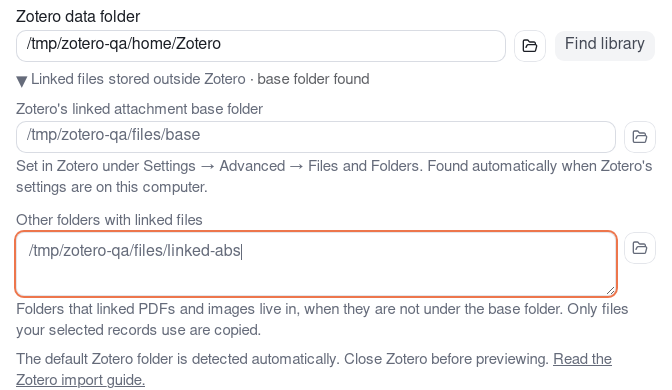
A linked file that Docr’d cannot reach is listed in the preview under Files that will not be copied, with the path Zotero recorded and which folder would let it be copied. Its reference is still imported, and a later import adds the file once the folder is set.
Import on the web
The web app cannot read folders on your computer, so it takes a ZIP of the data folder instead:
- Quit Zotero.
- Compress the whole Zotero data folder (the one holding
zotero.sqliteandstorage). On macOS, right-click it and choose Compress; on Windows, Send to → Compressed (zipped) folder. - In the web app’s Library, choose Add documents → Import references…, then Choose import file and pick the ZIP. It uploads to your cloud library, then the same choice of libraries, unfiled items and collections appears.
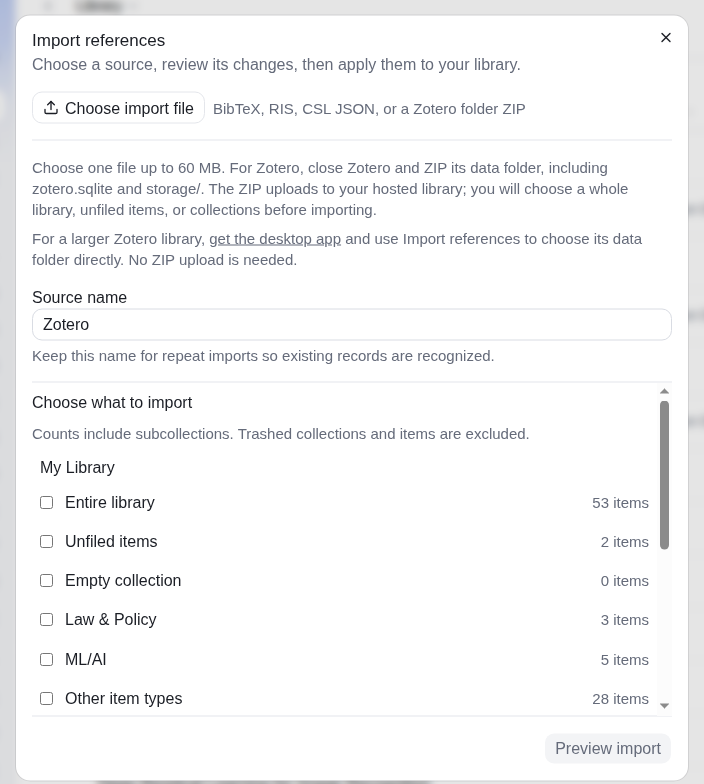
- Preview and import as on desktop.
One upload can be up to 60 MB. A bigger library imports from the desktop app, which reads the folder in place, and then syncs to the web. Linked files are not inside the ZIP, so they also need the desktop app.
After the import
- Binders. Each collection is a binder, nested as it was in Zotero. An item in several collections sits in each of those binders.
- Marks. Open a PDF and choose Marks in the right sidebar to see every mark that came from Zotero, with its colour, comment and tags. They are ordinary Docr’d marks now: edit, tag or delete them as you like. EPUBs and snapshots open in the same reader and take new marks, but the ones made on them in Zotero are not imported yet.
- Notes. Zotero notes become Markdown notes attached to their item, or standalone notes in their binder. Tables, images, formulas and formatting come across, and links between notes and items in the same import keep working.
- Tags. Tags keep their names. Zotero’s automatic tags are imported too.
- Duplicates. Docr’d matches imported items against your library by DOI, ISBN, ISSN, PubMed ID, URL and citation key, so an article you already had is not added twice. Documents that look alike, such as two editions of a book, appear under Duplicates in the Library sidebar, where you can merge them or say they are not the same.
Importing again later
Run the same import whenever you have added to Zotero. Items it has seen before, recognised by the Zotero key under the same source name, show as Already imported; items with new attachments, marks or notes show as Ready to update, and only the new content is added. If an item’s details changed on both sides, the preview lists each field with your value beside Zotero’s, and you choose Keep mine or Take Zotero’s for that item.
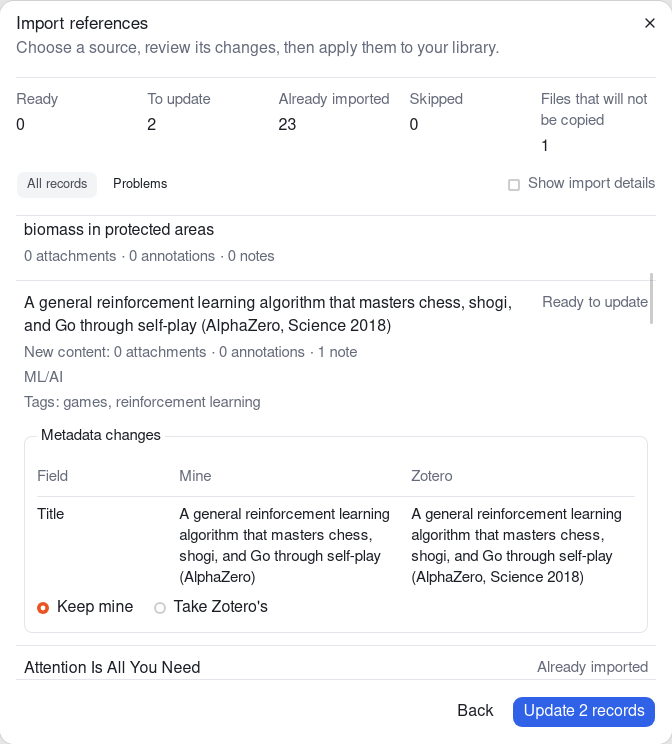
Changes you made in Docr’d stay: an import never deletes a document, a mark or a note, and never changes your metadata unless you chose Take Zotero’s. Items you deleted in Zotero are left as they are in Docr’d.
Other sources
The same Import references… dialog takes a BibTeX (.bib), RIS (.ris) or CSL JSON (.json) file from any reference manager, and a Better BibTeX JSON export from Zotero. Choose the file, confirm its format, preview and import. These files carry references only, so attachments and marks arrive when you import from Zotero’s data folder instead.
Need a hand?
Write to support@getdocrd.com with what you were importing and the notice you saw. Never send sign-in codes.